QR code page – configuration in the admin
The QR page shows a QR code on the panel with two lines of text below it. The most common purpose: guests scan the code and are on the WiFi without typing the password. The card can also carry any text, a web address or a phone number.
It is created in the tab PageConfig, page type QR. That is the only way: a page with the card type cardQR in a configuration script is discarded by the adapter with Page: <name> with card type cardQR is only supported in the admin configuration! Skipped! and is not built (config-manager.ts).
The QR code itself is drawn by the panel firmware. The adapter only sends the string — very long contents therefore become unreadable quickly on the small display.
Contents:
- Creating the page
- QR code type
- Headline and content
- WiFi: encryption, password, hidden network
- The password from the central credentials
- Enabling the WiFi with a switch
- What appears on the panel
- Panel assignment and navigation
- Taken over from the old table
- Pitfalls
1. Creating the page
- Open the instance settings → tab PageConfig.
- On the left under Page Type pick the entry QR, enter a name in the field New Page, press +.
- The page appears in the list Pages, the editor opens on the right.
The name is shown in the editor as Unique ID and is the ID of the page — other pages address it by that name in their navigation targets. The field is read-only — the name is fixed once the page exists; if the page is marked as the start page, the editor shows the hint Start page - published under the id "main"… instead. Why the name is fixed is explained under PageConfig – Overview.
The fields Panel Filter and Page Type above the list only filter what the list shows.
Every field is greyed out while the instance is not running. The editor queries the adapter live; with a stopped adapter nothing can be entered and nothing can be created. The interface gives no explanation for this — the greyed-out form is the only hint.
The link Documentation at the bottom right of the tab leads to exactly this wiki page (cardQR).
2. QR code type
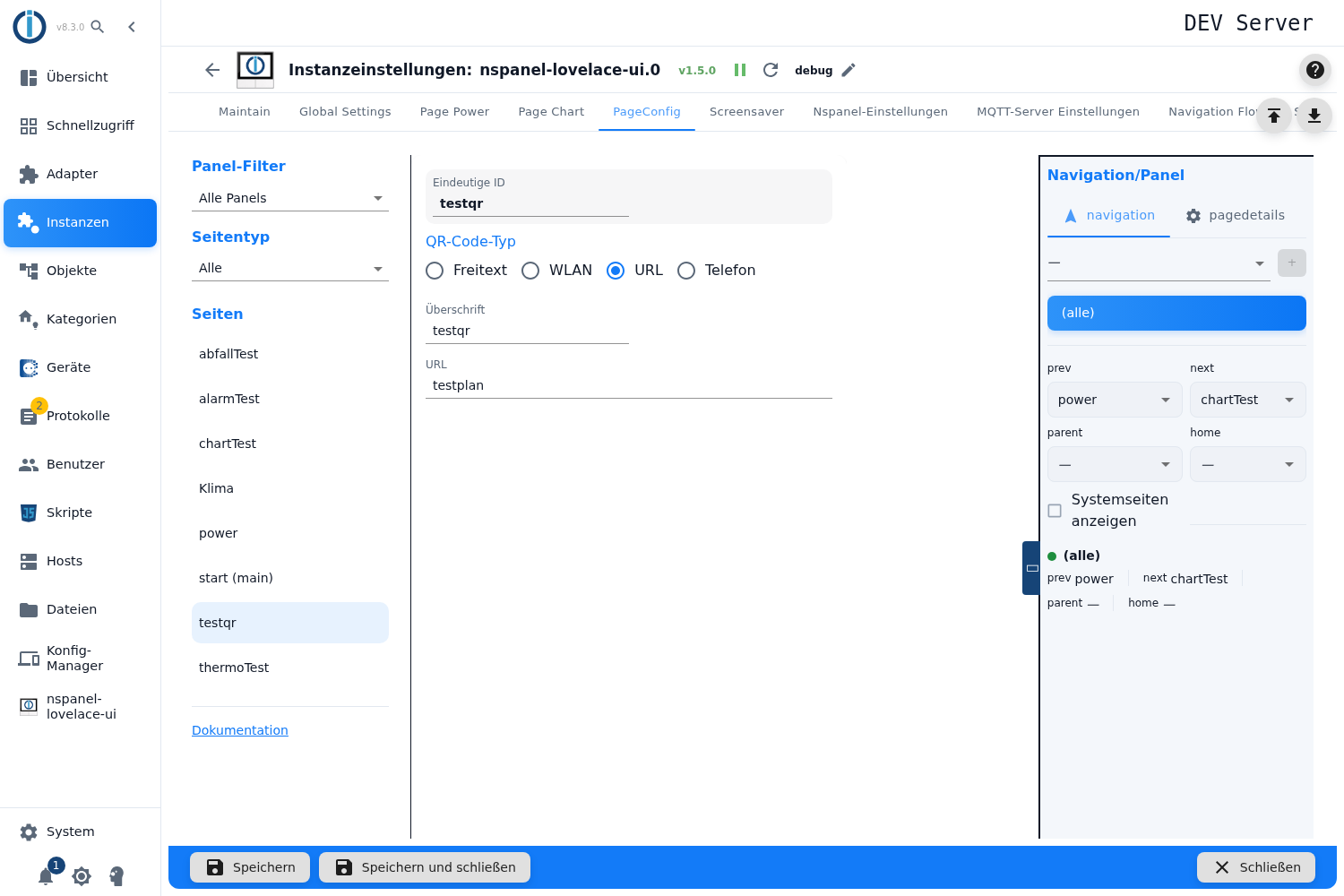
Four radio buttons under QR Code Type decide what the code contains. Which fields appear below depends on it:
| Type | String in the code | Further fields |
|---|---|---|
| Free Text | the content unchanged | none |
| WiFi | WIFI:T:<encryption>;S:<SSID>;P:<password>;H:true; — without the checkbox Hidden Network it ends with H:; |
WiFi Encryption, central credentials, WiFi Password, Hidden Network, Do not show the password on the panel, switch |
| URL | URL:<address> |
none |
| Phone | TEL:<number> |
none |
On a new page the type is preset to Free Text. With Phone the country code belongs in the number (+49…), otherwise the phone cannot dial it.
3. Headline and content
Headline sits as the header line above the code. Creating the page fills in the page name; if the field stays empty, the panel shows Page QR.
The field below it carries the actual content and changes its label with the type: QR String, WiFi SSID, URL or Phone Number.
Nothing is validated here. No required entry, no length limit, no check whether an address looks like an address. An empty field produces an empty QR code — and you only see that on the panel, because the editor has no preview.
Three things the adapter does with the texts, worth knowing when a code does not work:
- A tilde
~is replaced by-. This applies to the whole message sent to the panel, so to SSID and password as well. A password containing a tilde arrives changed — without any notice. - Special characters in the WiFi code are not escaped. If the SSID or password contains a
;,:,,or\, that breaks the structure of theWIFI:code and the scanner reads nonsense. Whoever has such characters in the password has to write the QR card off for it. - The headline runs through the dictionary of the adapter. If it happens to carry a keyword of the adapter translation (
hidden, for instance), the panel shows the translated text instead of the entry.
4. WiFi: encryption, password, hidden network
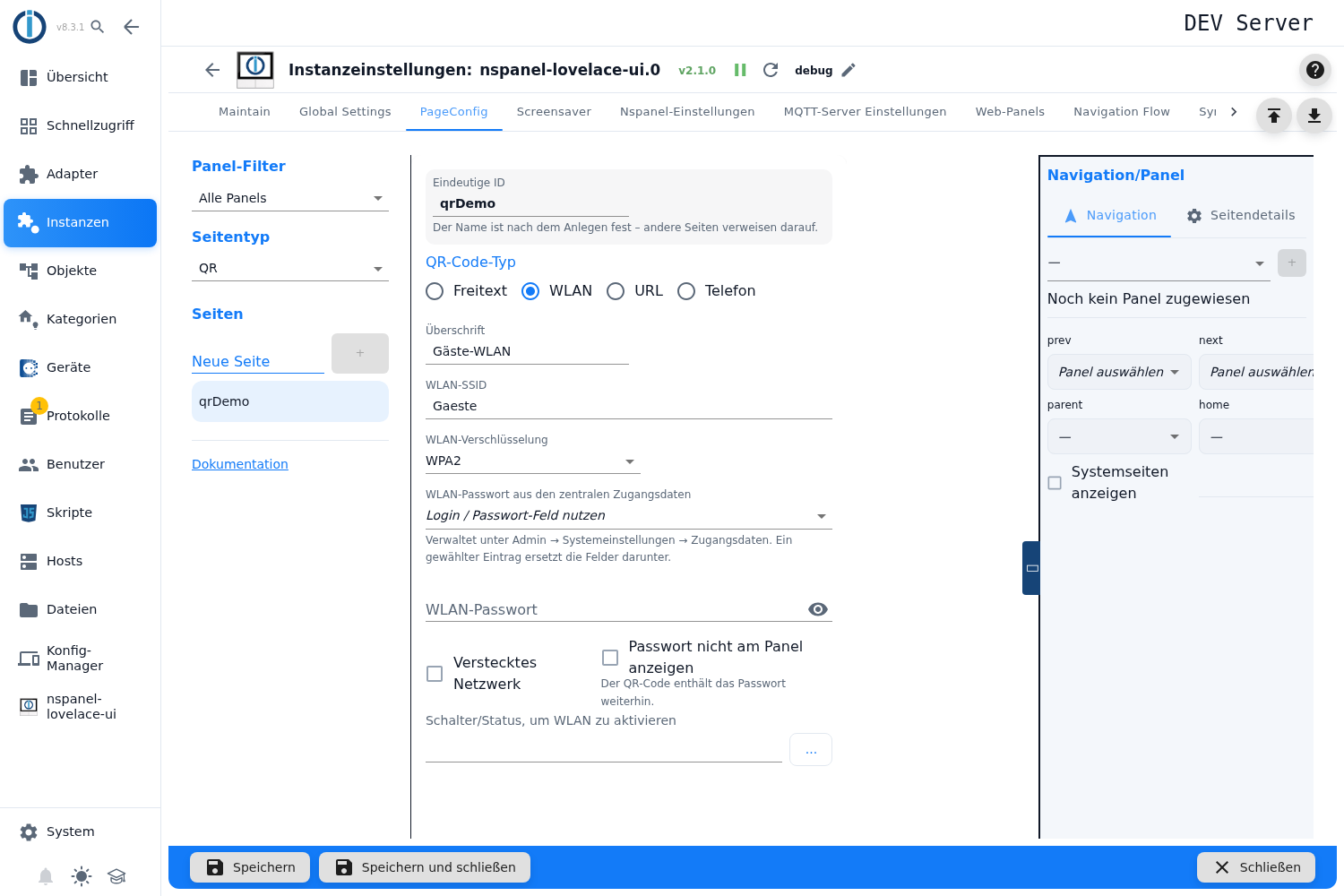
These fields only appear for the type WiFi, in this order: WiFi Encryption, central credentials, WiFi Password, the two checkboxes, switch.
WiFi Encryption
WiFi Encryption — the choices are No Password, WPA, WPA2, WPA3 and WEP. A new page is created with WPA2, and exactly that value goes into the QR code. The same applies to pages without a stored encryption, for instance from the old table (see section 9): interface and code both read WPA2. A WPA-only or WEP network therefore needs a deliberate choice.
WiFi Password
WiFi Password — the password in clear text; the eye icon toggles the display. The field falls away when the encryption is set to No Password, and it is locked while an entry is selected under Wifi password from the central credentials (see section 5).
⚠️ A password entered here is stored unencrypted in the instance configuration (
native.pageConfig[].qrPass) and is readable by anyone with read access to the objects. It is stored encrypted only when it comes from the central credentials. Whoever does not want that uses a separate guest network for the visitors with a password whose loss does not hurt.
ℹ️
No Passwordtakes the password off the panel, not out of the configuration. The adapter only resolves the password when it belongs to the code: a WiFi code and an encryption other than No Password. With No Password the second line of the card stays empty and the code carries an empty password field (WIFI:T:nopass;S:<ssid>;P:;H:;); with the types free text, url and telephone the password plays no role at all any more. The value stays stored though: pick an encryption again later and the old password is back - so switching destroys nothing. Whoever wants to get rid of it for good clears the field while the type is WiFi and the encryption is not No Password.
Hidden Network
Hidden Network — writes H:true into the code so the scanner also connects to a network that does not broadcast its name. Without the checkbox the string ends with H:;.
Do not show the password on the panel
Do not show the password on the panel — leaves the password line on the panel empty. Below it the hint reads The QR code still contains the password.
⚠️ This is not a security feature. The checkbox only clears the text line; the QR code still contains the password and any scanner reads it out. That is exactly what the card is for. The checkbox helps against someone reading over your shoulder, not against a photo of the code.
5. The password from the central credentials
The WiFi password does not have to sit in the instance configuration. The select box Wifi password from the central credentials above the password field refers to an entry from Admin → System settings → Credentials instead; only its object ID is stored then (system.credentials.<name>), the value is read and decrypted by the adapter at runtime. The hint below the field puts it briefly: Managed under Admin → System settings → Credentials. A selected entry replaces the field(s) below.
| Entry in the list | Effect |
|---|---|
| Use the login / password field (first entry) | no central entry; the field WiFi Password applies. |
<name> (login & password) |
the adapter takes the password of the entry, the user name is ignored. |
<name> (key) |
the adapter takes the key of the entry. |
The list is reloaded every time it is opened, so an entry created in the system settings in the meantime appears without reloading the page. The secrets themselves never reach the browser.
What happens without a usable entry:
| Situation | Behaviour |
|---|---|
| no entry selected | the field WiFi Password applies. |
| entry selected, but empty | warning in the log (Credential "…" is empty - using the field of the instance settings instead), the field WiFi Password applies. |
| entry deleted or not readable | warning in the log (Cannot read credential "…"), the field WiFi Password applies. In the editor the error text reads The selected credential no longer exists - the field(s) below are used. |
| list cannot be loaded | The list of credentials could not be loaded; the stored field stays unchanged. |
| neither entry nor field filled | the code is built with an empty P:, without a message. |
⚠️ If the entry falls away, the password field stays locked. The lock depends solely on the fact that an ID is stored — not on whether it can still be resolved. The editor does report that "the field(s) below" now apply, but it allows no entry. To fill it in, first set the select box back to Use the login / password field.
Leading and trailing spaces are lost. The adapter trims the value it reads (
trim) — on both paths, central entry and field. A password that begins or ends with a space arrives shortened in the code.
The adapter watches every entry in use: if its value changes, the instance restarts and builds the pages with the new password (Credential "…" has new values - restarting the adapter to apply them). Renaming or a new icon trigger no restart — what is compared is a fingerprint of the values, not the object. If the entry is deleted, the instance keeps running with the value read at start-up and only reports Credential "…" was deleted - after a restart the fields of the instance settings are used instead.
That the password came from a central entry is written to the debug log only (
QR page '<name>': password taken from credential "<name>"). For the adapter's other credentials (MQTT, Tasmota WebUI) the adapter reports this as info.
6. Enabling the WiFi with a switch
Switch / state to enable WiFi takes a state with type=boolean that is both readable and writable (the object picker only offers such states). The usual case: the guest network on the router is normally off and is only switched on when visitors are there.
What this state really does is not stated like that in the interface:
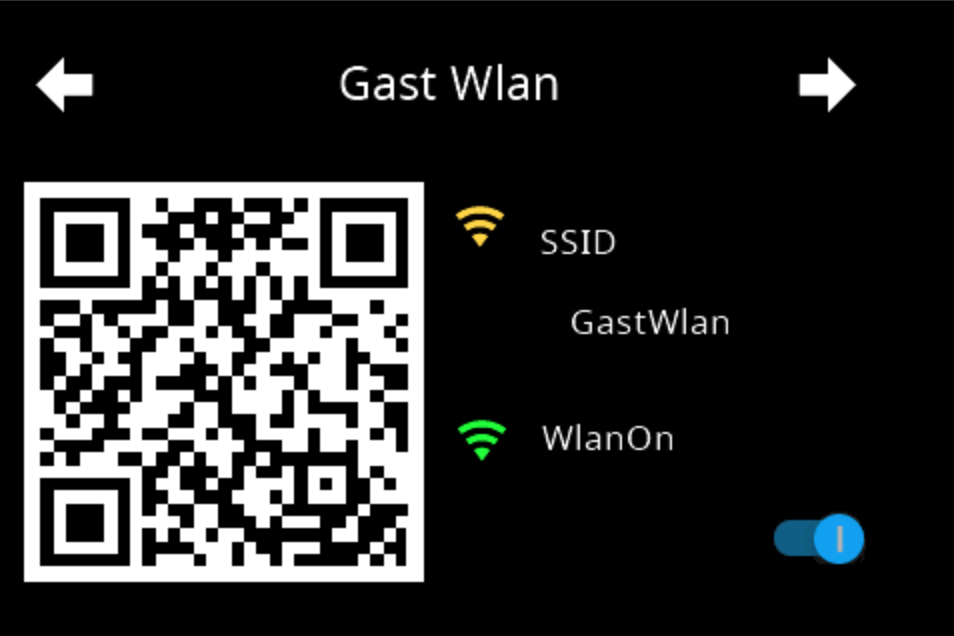
- The second line of the card turns into a switch. It shows a green
wifiicon withWlanOnor a greywifi-offwithWlanOff, and a press on it toggles the state. - The password line disappears with it, because there is only this one line. Whoever wants the switch and the password display cannot have both on this card. The checkbox Do not show the password on the panel is without effect in this variant.
- The QR code itself stays visible unchanged — even while the network is off.
⚠️ The field only appears with WiFi, but it works with every type. If the QR type is later switched to Free Text, URL or Phone, the state stays stored and the second line keeps showing the WiFi switch with
WlanOn/WlanOff— on a URL card. To remove it, set the type back to WiFi and clear the field.
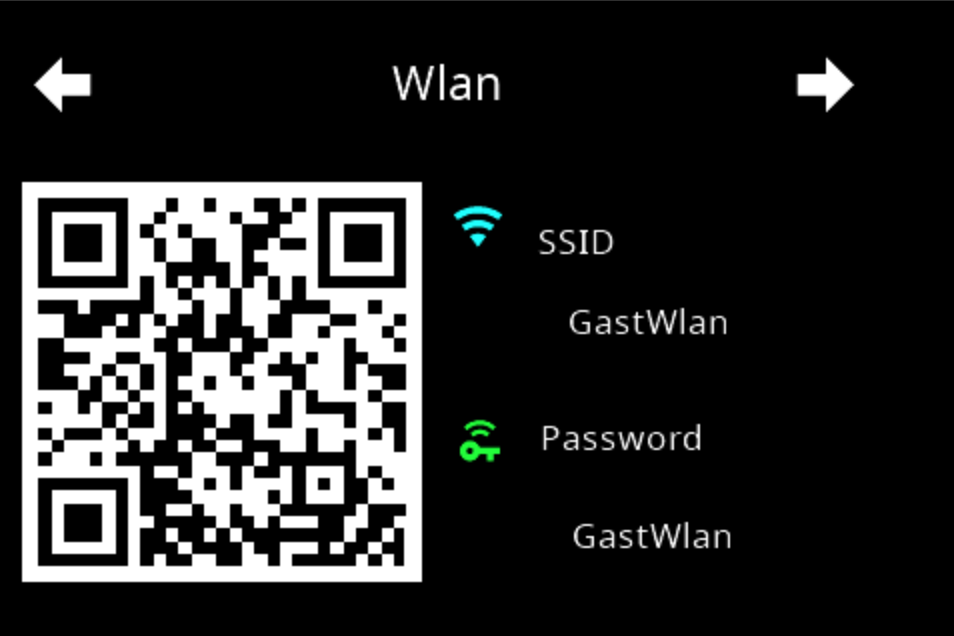
On the left the card without a switch, on the right with one: the second line carries either the password or the button — not both.
7. What appears on the panel
The card has a fixed layout: headline, QR code, and below it exactly two lines.
| Line | Content |
|---|---|
| 1 | Icon and label per type — Free Text: qrcode-scan, without a label and without a value · WiFi: wifi with "SSID" · URL: web with "URL / Website" · Phone: phone with "Telephone". With WiFi, URL and Phone the entered content is shown as the value. |
| 2 | Without a switch: icon key-wireless with "Password" and the password as the value — empty when Do not show the password on the panel is set. With Free Text, URL and Phone this line stays without an icon and without a text. With a switch: the button from section 6. |
The same card as a phone number and as a web address:
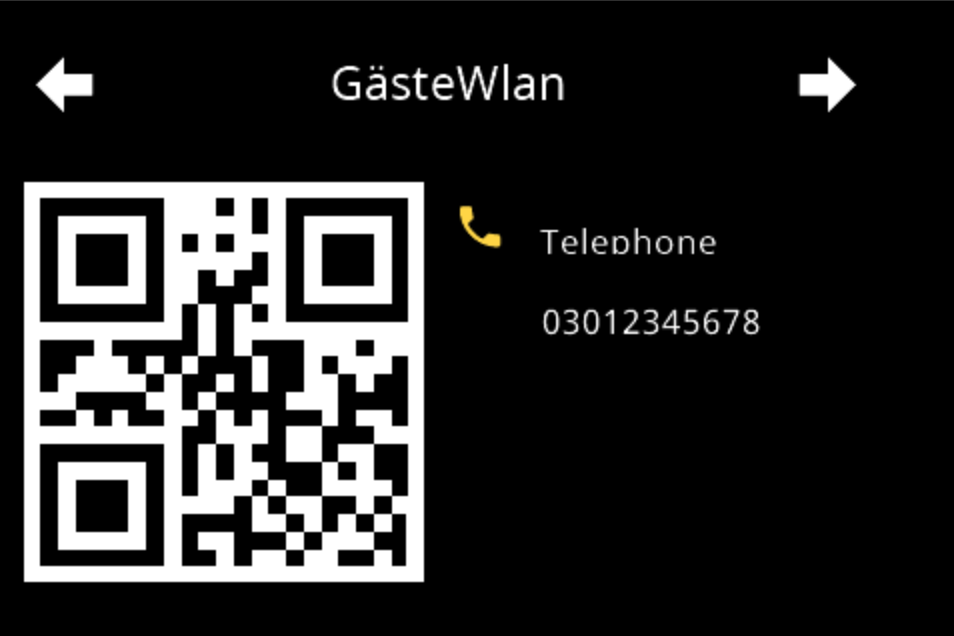
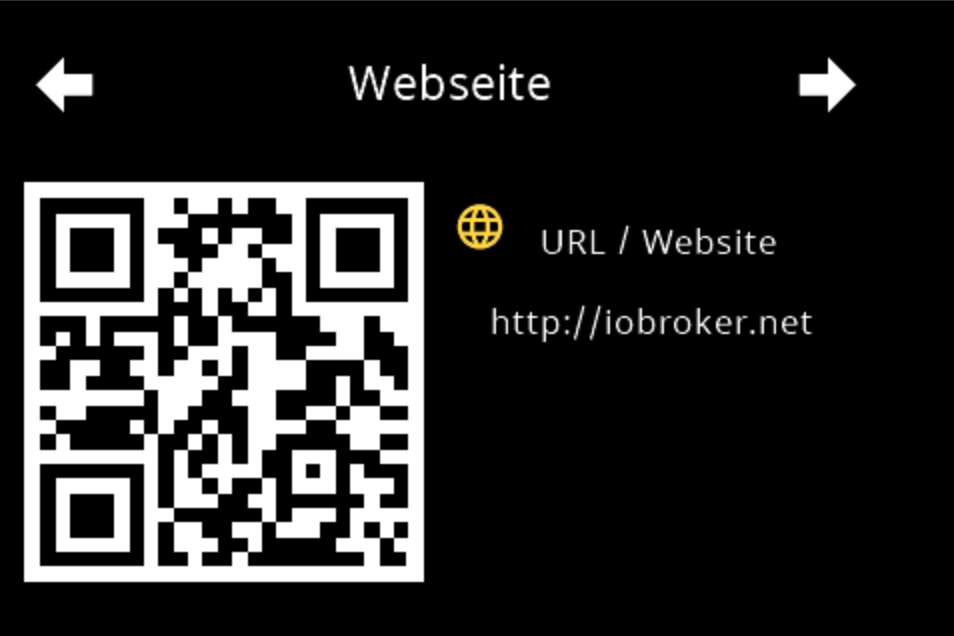
The labels of these two lines — "SSID", "Password", "URL / Website", "Telephone", "WlanOn", "WlanOff" — are hard-coded in English in the adapter source and have no entry in any dictionary. So they read the same in every panel language.
The card refreshes at most once per second. There is no limit on how many QR pages you create.
8. Panel assignment and navigation
Panel, navigation targets, Start page (main), Hidden and Screensaver behavior are — as with every card type — in the right-hand column and are described under PageConfig – Overview. The QR page has no peculiarities there; it can also serve as the start page.
A reminder: a page without a panel assignment is not built and does not exist on the panel.
9. Taken over from the old table
Whoever used to keep the QR pages in the separate table pageQRdata will find them as pages in the PageConfig tab after the update. The conversion happens by itself on the first start, the old table is removed afterwards.
Taken over are: unique ID, headline, QR code type, content, WiFi encryption, switch state, Hidden Network, Do not show the password on the panel, Hidden and Screensaver behavior. If the old table held no encryption, WPA2 applies, just as on a new page.
⚠️ The WiFi password has to be entered anew. In the old table it was kept elsewhere and is not carried over; afterwards the password field is empty. The QR code is still built and looks valid; only nobody connects any more.
The adapter names the affected pages once as a warning in the log:
QR pages moved from the old table to the page configuration: <names>. The wifi password was not taken over - please enter it again in the admin (page editor, wifi password or credential).Only WiFi pages with an encryption are listed — with No Password and with the other types nothing is missing.So after updating an existing installation: open every QR page named there once and enter the password or pick an entry from the central credentials (section 5).
Since 2.0.0 the button Take script over into admin in the tab Maintain also clears out the references to QR pages from a configuration script. The preview says This page type is configured in the admin only – the reference in the script is dead and is removed; no admin entry is created in the process, as the page itself was always configurable in the admin only. The procedure is described under Migration. Afterwards the panel can be detached from the script completely with Panel uses no script (see NSPanelsetting).
Pitfalls
- After the take-over from
pageQRdatathe WiFi password is missing. Enter it anew, see section 9. No Passworddoes not delete the stored password. It no longer reaches the panel, but it stays in the configuration and shows up again as soon as an encryption is chosen.- A switch state once set also works after a type change. Then a WiFi switch hangs on a URL or phone card.
- Locked password field although no credential entry exists. Set the select box back to Use the login / password field first.
- Special characters break the WiFi code:
;,:,,,\are not escaped,~becomes-, leading and trailing spaces are trimmed. - No field is required, no check runs. An empty content field produces an empty code; that only becomes apparent on the panel, because the editor has no preview.
- Everything greyed out: the instance is not running. The editor can be used with a running instance only.
- The page is missing on the panel: check the panel assignment — without an assignment the page is not built.
- A QR page in a configuration script stays without effect. The adapter skips it with a warning; the configuration belongs in the admin.
