Trash page – configuration in the admin
The trash page shows the next waste collection dates: one line per date with a coloured icon, the name of the waste type and when it is collected — "today", "tomorrow", the weekday or the date. The dates come from a state of the ical adapter or from an uploaded .ics file.
You create it in the PageConfig tab, page type Trash. The adapter does not build a card type of its own from the entry but an ordinary list page (see section 2).
Contents:
- Creating the page
- What the adapter builds from the entry
- The editor at a glance
- Where the dates come from
- Searching for events and applying them
- The six waste types
- How a date finds its line
- What appears on the panel
- When the dates are refreshed
- Panel assignment and navigation
- State of 2.0.2
- Pitfalls
1. Creating the page
- Open the instance settings → tab PageConfig.
- On the left pick Trash as the Page Type, enter a name under New Page, press +.
- The page appears in the list Pages and the editor opens on the right.
Unique ID is the page name other pages use to address this page in their navigation targets; the field is read-only, the name is fixed once the page exists. While the page is flagged as Start page (main), its own notice stands below it ("Start page - published under the id „main". …"). See PageConfig – Overview.
Headline is the header line on the panel; left empty, the panel shows Trash.
Below the page list the Documentation link leads straight to this page.
All fields of the editor are locked while the instance is not running. The editor gives no hint about it.
2. What the adapter builds from the entry
There is no card type cardTrash on the panel. From the entry the adapter builds an ordinary list page based on the template entities.waste-calendar:
| Setting Number of trash entries on the page | Card on the panel | Lines |
|---|---|---|
| 4 trash entries | cardEntities |
4 |
| 6 trash entries | cardSchedule |
6 |
Each line becomes a page item with the role text.list that reads icon, colour, name and date from an internal state pageTrash_<Unique ID>. The adapter fills that state from the source of the dates (see section 9).
From this follows:
- The number of date lines is tied to the card type and cannot be chosen freely.
- The setting Number of trash entries on the page also changes the way the date is written (see section 8).
- The number is clamped to 1 to 6 before the page is built. An entry from an older admin version that stored no number at all or a nonsensical one gets six lines.
- A trash page can only be created in the admin. The configuration script does not know the page type; a trash page is a hand-built list page with states of its own there. Such a script page can not be converted into the page type Trash through the Migration either — the admin cannot represent the template of a page, and the migration reports "A field of the page cannot be represented in the admin" for it.
3. The editor at a glance
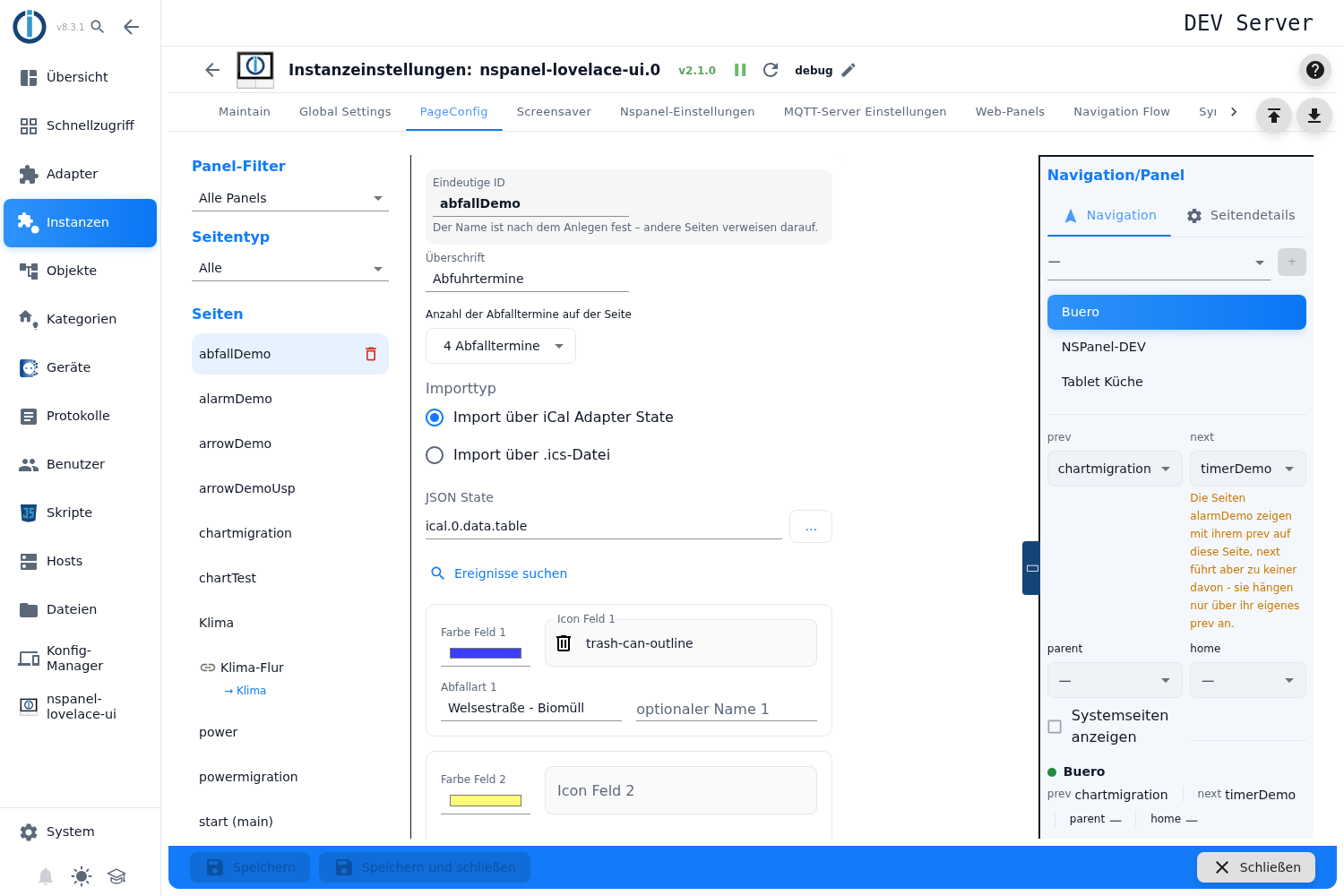
The editor is a form, from top to bottom:
| Field | Meaning |
|---|---|
| Unique ID | Page name; read-only, fixed once the page exists. |
| Headline | Header line on the panel; empty → Trash. |
| Number of trash entries on the page | Number of date lines: 4 trash entries or 6 trash entries. It also decides the card type and the way the date is written. |
| Import type | Import via iCal Adapter State or Import via .ics file. |
| JSON State or .ics file including path | The source of the dates, depending on the import type (see section 4). |
| Search events / Upload file | Reads the source and lists the event names occurring in it. |
| Six blocks Color/Icon/Trash type/Optional label | One block per waste type (see section 6). |
4. Where the dates come from
Under Import type there are two ways:
| Choice | What is needed |
|---|---|
| Import via iCal Adapter State | A state of the ical adapter holding the table of dates. |
| Import via .ics file | A calendar file uploaded into the file area of the instance. |
Way 1: ical adapter
The field JSON State takes the state with the list of dates; the ical adapter usually provides it under ical.<n>.data.table. The content has to be a JSON array (as text or as an object), and every entry needs the fields _date (date of the appointment) and event (event name). Dates before today (midnight) are discarded; there is no sorting — the order the adapter delivers applies.
The object picker only shows states whose ID begins with
ical.. If you provide your dates through a script or in0_userdata, you will not find your state in the dialog and have to type the ID into the field by hand — that works, but nothing tells you so. The label JSON State reads the same in every language and does not say that the ical adapter's table of dates is meant.
Way 2: .ics file
Upload file opens the file picker (.ics only). The file goes under its name into the file area of the instance (nspanel-lovelace-ui.0), and its name then enters itself into the field .ics file including path. A status line reports the result:
- "'file.ics' uploaded – 24 appointments found. Please select the ones to display."
- "'file.ics' uploaded, but no appointments were found in the file."
The adapter reads the file from the file area again on every run. Here too only dates from today on count; they are additionally sorted by date.
The help text "Path to the .ics file in the ioBroker file system. Automatically filled in when uploading the file" means the file area of the instance, not the file system of the host. A path entered by hand has to be relative to that; a path like
/opt/iobroker/…finds no file and the log reports "File … does not exist in ioBroker files".
5. Searching for events and applying them
For the page to show anything, the adapter has to know which event name belongs to which waste type. There is a helper for that:
- On the state way press the button Search events: the editor reads the state and collects the values of
eventoccurring in it, each one once. On the file way the same list appears already at the upload; there is no search button there. - The names appear as a list of checkboxes — heading Found events, please select (state way) or Select events (file way). At most six can be ticked; after that the remaining lines are locked.
- Apply selection enters the ticked names into the fields Trash type 1 to 6 — in the order in which they were ticked, not in the order of the list. All six blocks are filled anew in the process (see below).
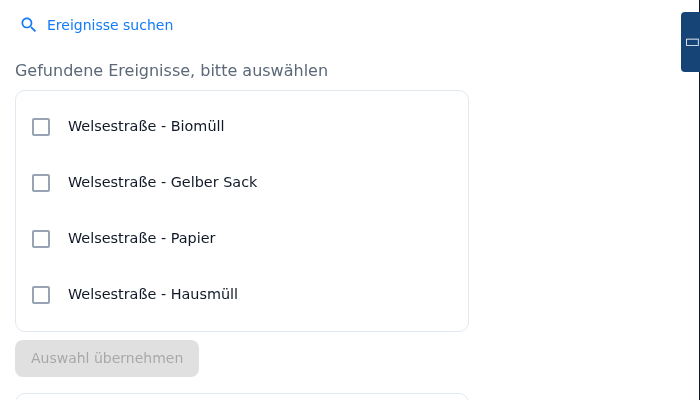
⚠️ "Apply selection" writes the six blocks from scratch. The button rebuilds the waste types of the page from the selection instead of adding to them - so everything that does not come from the selection is cleared. Every slot with a ticked name gets the trash type and the standard icon
trash-can-outline; every other slot loses trash type and icon. The optional label is cleared in all six blocks, the colours you set stay. Icons and optional labels picked by hand therefore have to be entered again; if you have already curated your waste types, it is better to add entries by hand.
After applying, the event list is gone (it is reset together with the selection). For a second round you have to search or upload again. The same happens when the Import type is changed.
Errors of the search and of the upload appear in the language of the admin as a coloured status line in the form — below the button Search events or in the area of the file picker —, with a cross to close it: "Please select a state first.", "The state contains no data.", "The state does not contain an array.", "Reading the state failed: …", "Upload failed: …", "Upload failed: the file is empty." and "The file could not be read." A successful search clears the line.
6. The six waste types
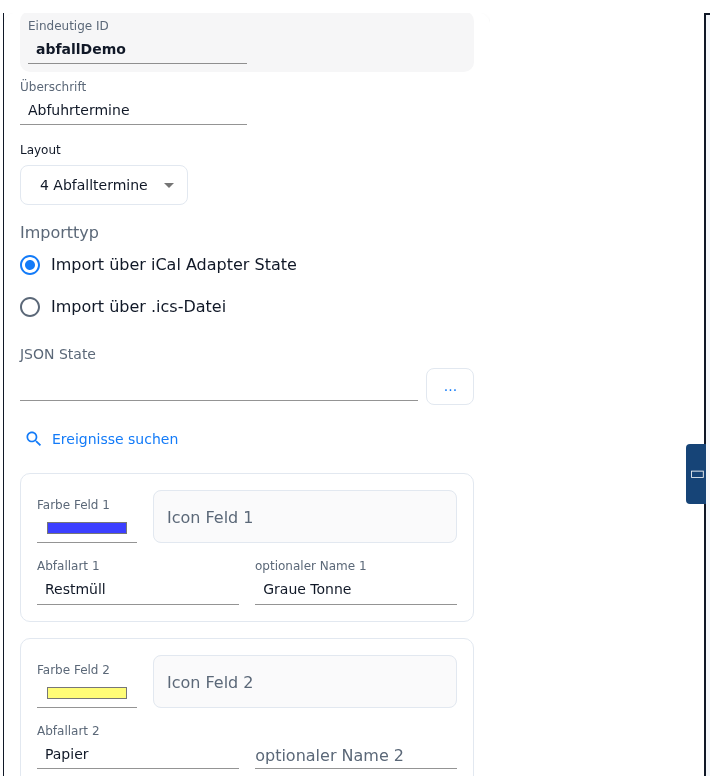
Below that are six identically built blocks, one per waste type:
| Field | Meaning |
|---|---|
| Color field n | The colour of the icon. Defaults of a new page: 1 blue #3c3fff, 2 yellow #fffd77, 3 light grey #d2d2d2, 4 orange #de8900, 5 and 6 light grey #d2d2d2. |
| Icon field n | The icon from the icon picker. Without one the adapter uses calendar-month. |
| Trash type n | The search term used to assign dates to this line — see section 7. |
| Optional label n | What is displayed on the panel when it should differ from the search term. Handy when the calendar delivers "Restabfallbehaelter 240l" but the panel should read "Residual waste". |
Six blocks are always shown, and all six take effect — even with the setting 4 trash entries. The search for the matching line runs across all six terms; only the number of lines on the panel is limited. A match in block 5 or 6 therefore takes one of the four places just the same.
7. How a date finds its line
This is the core of the configuration and is explained nowhere in the interface:
- For every date the adapter checks whether the event name contains the text from Trash type n — it is a substring search, not an exact match, and it is case sensitive. So "Bio" also matches "Biotonne 14-täglich", while "bio" does not.
- It is checked from 1 to 6, and the first match wins. With overlapping terms the order decides: with "Papier" in field 1 and "Altpapier" in field 3, both end up in line 1 with the colour, icon and name of field 1.
- Empty fields are skipped, as are dates without an event name.
- Dates without a match are discarded — they do not appear at all.
- At most six dates are collected, after that the adapter stops.
From this follows the most common cause of an empty card: with no waste type entered, not a single date matches and the page stays empty for good. There is no warning for that.
Best practice: pick short, unambiguous terms and fetch the exact spelling through Search events.
8. What appears on the panel
One line per date: icon in the chosen colour, the name (the optional label, otherwise the trash type) and the date on the right. The order is the one of the source — sorted by date on the file way, as delivered on the state way.
The date is shown in stages:
| Date | with 4 trash entries | with 6 trash entries |
|---|---|---|
| today | today |
today |
| tomorrow | tomorrow |
tomorrow |
| in 2 to 7 days | long weekday (Donnerstag) |
short weekday (Do) |
| later | 15.11.2026 |
15.11.26 |
The words for today and tomorrow follow the language of the adapter and exist in all eleven languages (English today and tomorrow, German Heute and morgen, Spanish hoy and mañana …). Weekday and date, on the other hand, are fixed to German (
de-DE) and do not follow the language setting: on an English panel "today" stands above the weekdayDoand the date15.11.2026.
Internally the adapter keeps up to six dates ready; with the setting 4 trash entries the panel shows the first four.
9. When the dates are refreshed
The adapter fetches the dates when the instance starts and after that in the hourly loop every six hours — on the full hours 0, 6, 12 and 18 —, and also daily at 00:01 local time. There is no monitoring of the ical state: a new date in the calendar or a newly uploaded file only becomes visible with the next run. If you do not want to wait, restart the instance.
Every run writes the result into the internal state pageTrash_<Unique ID>. Problems with the source appear as a warning or an error in the ioBroker log, for example "No trash state defined for entry …", "Trash state … has no data ." or "No trash .ics-file defined for entry …".
10. Panel assignment and navigation
Panel, navigation targets, Start page (main), Hidden and Screensaver behavior live in the right-hand column, described under PageConfig – Overview.
At the bottom Save or Save and close. The instance restarts afterwards and builds the page.
11. State of 2.0.2
Nothing changed on the trash page itself between 2.0.0 and 2.0.2. Three general changes from 2.0.0 matter for setting it up:
- A configuration script is no longer needed. A panel with the option Panel uses no script can consist of admin pages alone, the trash page included.
- The Documentation link below the page list leads to the wiki page of the chosen card type — for this page type therefore to
cardTrash. - The new page type Page link (pageLink) can show a trash page under a second name on another panel. Content and dates stay those of the original page.
Dates on the screensaver
The templates text.trash.next and text.trash.afterNext show the next and the one after next date in the bottom area of the screensaver, see Screensaver. At the top is the optional name of the date, otherwise the waste type; a long name can be cut off there and can be shortened with the optional name. Today, tomorrow and the weekday appear as on the page, a date in short form as day.month (06.12). If a date is missing, the item hides itself, without a message in the log. The template list of the item offers both dates for each trash page separately, as Next date (page) and Date after next (page). The unique ID of a page is fixed: if the page is deleted and created again, the item has to choose the new page again.
Pitfalls
- Nothing works without a running instance. All fields are locked, search and upload do not run. Unlike other page types, the editor gives no hint about the reason here.
- Weekday and date stay German. Today and tomorrow appear translated, while the weekday (
Donnerstag,Do) and the date (15.11.2026) are hard-wired tode-DEand do not follow the language of the adapter. - No trash type entered = permanently empty page. Without a search term no date matches; neither the editor nor the log points it out.
- Fewer matching dates than lines fills the log. Every line reads its entry by index; if it is missing, the adapter reports "Read for dp: ///pageTrash_… is invalid! … Error: TypeError …" for each missing line. The affected line shows nothing meaningful. To avoid that, pick 4 trash entries and keep at least four trash types curated.
- "Apply selection" fills the page anew. Occupied slots get the trash type and the standard icon, the remaining ones are cleared, and the optional labels disappear in all six blocks; only the colours stay. The transfer follows the order of clicking.
- All six trash types take effect, even with four date lines. Blocks 5 and 6 are not ineffective; a match there takes one of the four places.
- The object picker filters hard on
ical.. Any other source (script,0_userdata) can only be reached by typing the ID. - The state has to deliver
_dateandevent. With_datemissing — because the state only knowsdate, for instance — the filter on past dates does not catch and the panel reads01.01.1970. - There is no sorting on the state way. If the ical adapter delivers the table unsorted, the lines appear in that order on the panel too. Only the file way sorts by date.
- The field ".ics file including path" means the file area of the instance, not the file system of the server. A file of the same name is overwritten on upload.
- Up to six hours of delay. Neither a change in the calendar nor a newly uploaded file takes effect immediately; the dates are only fetched at the start, on the hours 0, 6, 12 and 18 and daily at 00:01.
- The messages stand in the form, not in a window. They appear translated, but they are easy to miss and gone once closed; the messages in the ioBroker log stay English.
- An entry from an older admin version without the list of waste types arrives empty. The adapter then fills six empty blocks with the default colours — there is no conversion of old single fields, the waste types have to be entered again.
