Panel info
The adapter adds its own entry to the admin sidebar — under the adapter icon.
It opens the Panel info tab: one card per panel with the values that matter, and not just to look at but to operate.
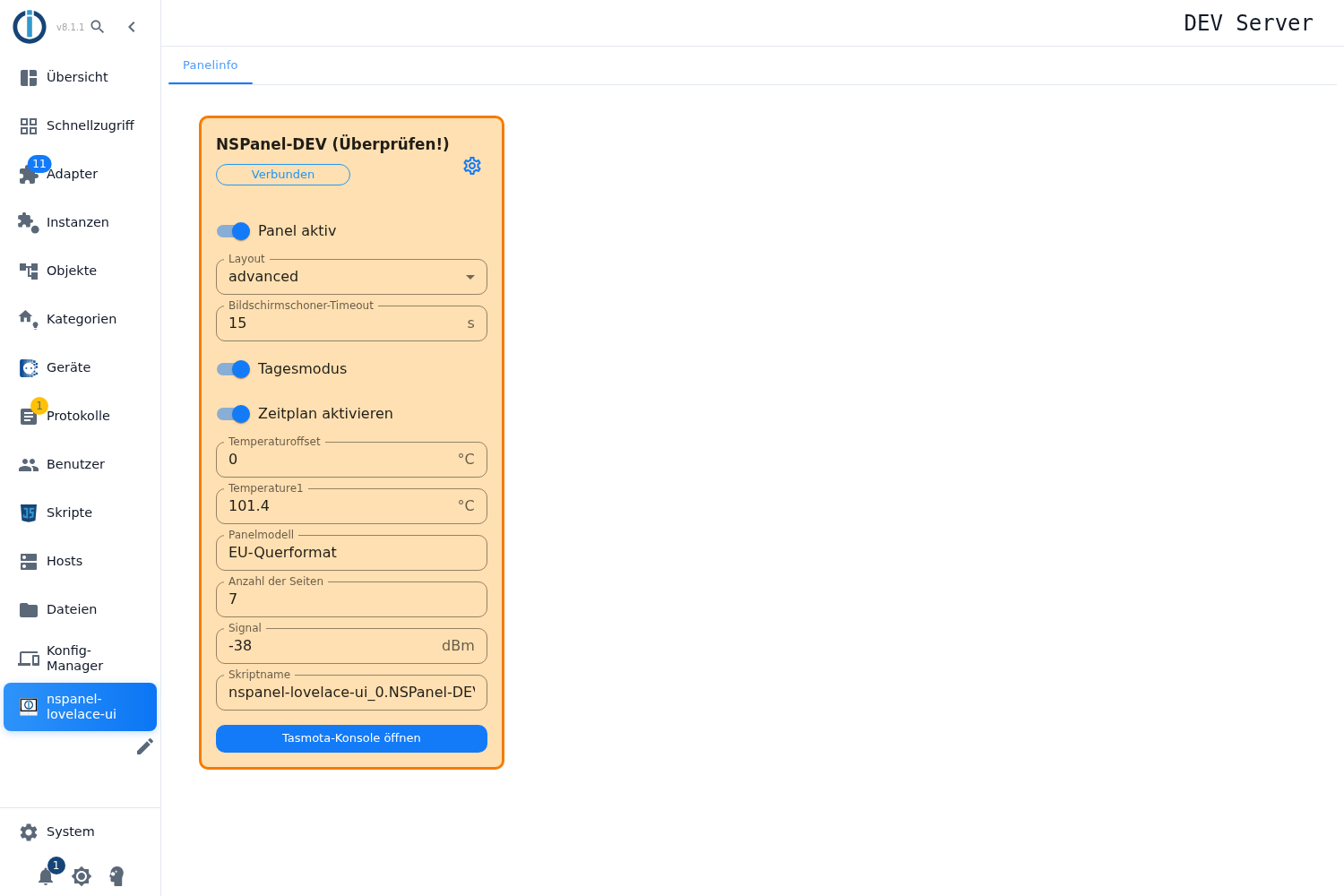
Unlike the instance settings, this tab is meant for the daily glance: is the panel running, how good is the Wi-Fi, how many pages does it have, which script belongs to it. The cog in the top right of the card leads to the instance settings if something really has to be configured.
What the card shows
Header: the name of the panel, the connection state and — if the adapter has found a discrepancy — the addition (check!) together with an orange border. Then come the values:
| Display | State under panels.<panel>. |
Meaning |
|---|---|---|
| Panel active | cmd.activated |
Switches the panel on and off in the adapter. |
| Layout | cmd.screenSaver.layout |
Version of the screensaver (e.g. advanced). |
| Screensaver timeout | cmd.screenSaver.timeout |
Seconds until the screensaver appears. |
| Day mode | cmd.dim.dayMode |
Switches between day and night brightness. |
| Enable schedule | cmd.dim.schedule |
Turns the time-controlled brightness on. |
| Temperature offset | cmd.tempOffset |
Correction for the built-in temperature sensor, see Temperature offset. |
| Temperature1 | info.tasmota.sensors.ANALOG.Temperature1 |
Reading of the sensor inside the panel. |
| Panel model | info.nspanel.model |
Hardware model, e.g. EU landscape. |
| Number of pages | info.internal.pageCount |
How many pages the panel currently knows. |
| Signal | info.tasmota.sts.Wifi.Signal |
Wi-Fi level in dBm — the closer to 0, the better. |
| Script name | info.internal.scriptName |
The configuration script belonging to this panel. |
At the bottom, open Tasmota console leads straight into the panel's web interface.
Operating, not just watching
Fields backed by a writable state are real controls: switches flip immediately, a selection applies the value when picked, a text field when you press Enter or leave it. Nothing is saved and nothing restarts — the value goes straight into the state and the panel reacts at once. Pure readings (temperature, signal, page count, script name) cannot be changed.
In practice that means: try out the screensaver timeout or the day mode here, without opening the instance settings and without restarting the adapter.
Temperature offset
The temperature offset is a correction for the built-in temperature sensor: Tasmota adds it to the reading, so a negative value lowers the display.
| What | Behaviour |
|---|---|
| Range | −12.6 to +12.6. The adapter sets values outside to the nearest bound. |
| Unit | Follows the Tasmota setting TempUnit — °C or °F. |
| Transfer | The adapter sends the value via MQTT as the Tasmota command <topic>/cmnd/tempOffset to the panel. This only works while the panel is online. |
| After a change | Right afterwards the adapter requests STATUS 10, so that Temperature1 shows the corrected value promptly and not only with the next regular report. |
| Panel comes online | Each time the panel comes online, the adapter sends the stored value again. |
| Value from the panel | If an MQTT message from the panel (tele/RESULT or stat/RESULT) contains the field tempOffset, the adapter writes this value to the state. |
In the quick access the field is a text field: type the value and confirm with Enter or leave the field — as described under Operating, not just watching. Web panels have no temperature sensor and therefore no offset (see WebPanel); both fields are missing for them.
Notes
- If the instance is not running, a notice appears instead of the cards — then the log is the place to look.
- The colour of the card follows the same logic as in the maintain tab: orange means "the adapter found something", for example outdated firmware or a newer script version.
- Which values a card shows is defined in the adapter; the complete list of a panel's states lives in the object tree under
nspanel-lovelace-ui.<instance>.panels.<panel>.
